




Best GTA 6 Settings for PS5, Xbox and Your TV
Set up GTA 6 on PS5 or Xbox Series X|S. Calibrate HDR, reduce TV input lag and tune aim sensitivity and controls with a step-by-step checklist.
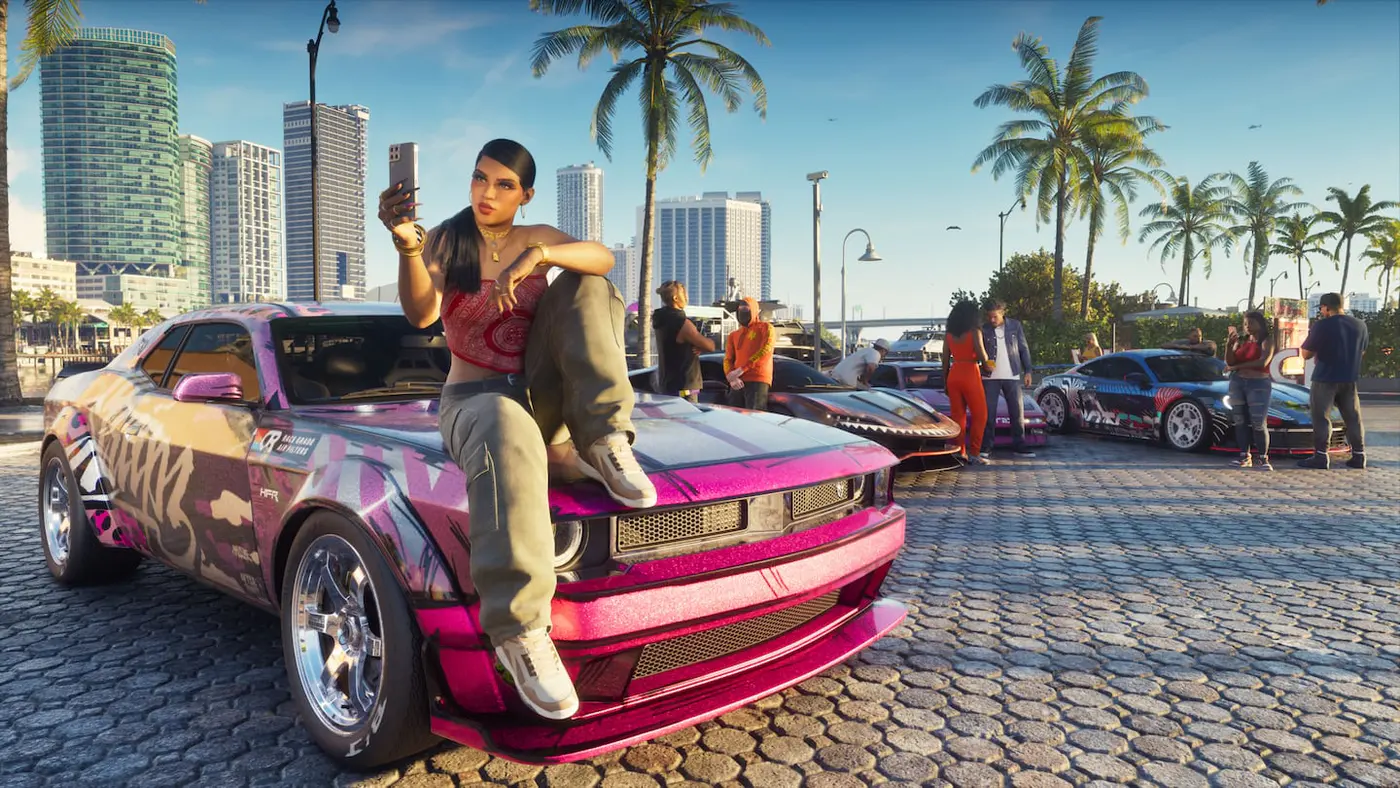
Start with your TV’s Game Mode, then calibrate HDR on the console and adjust GTA 6’s display and controller settings. Test in the same stretch of gameplay after each change so you can tell what helped.
Set up the TV and HDR first
Switch the TV input you use for the console to its low-latency or Game Mode preset. If controls feel sluggish, check for motion smoothing on that input and turn it off for the comparison. Its name varies by TV model. Keep your original numbers or take a photo before changing several picture options.
- On PS5, open Settings → Screen and Video → Video Output. Check HDR and use Adjust HDR with the TV already in the picture mode you plan to play in.
- On Xbox Series X or S, open Settings → General → TV & display options. Check whether the display reports HDR support and use the console’s HDR calibration if available.
- In GTA 6, go back to Settings → Display. Use the game’s calibration screen on your setup, then compare a bright street with a low-light scene. A preset number from someone else’s TV is a weak starting point because the screen, room and TV mode all affect the result.
Tune aim, camera and accessibility
Rockstar separates control layouts from controller sensitivity. Open Controls to review which buttons do what on foot and in vehicles. Open Controller to change aim or look sensitivity. Test the two separately. You can lower aim sensitivity a little while keeping the camera quick enough for driving and exploration.
On PS5, the same settings include DualSense features. Try a lower trigger effect if resistance makes aiming uncomfortable. Check Gameplay for accessibility or movement settings and UI if your issue is reading the HUD or subtitles.
Fix the symptom you actually notice
- If dark scenes lose detail, check the console’s HDR calibration and the game’s Display calibration with a repeatable scene. Test the picture in both a dark interior and daylight before settling on the level.
- If the view smears when you turn, review the game’s visual effects and the TV’s interpolation separately. Compare the same slow pan and a faster camera turn.
- If aim feels jumpy, adjust aim sensitivity before changing the whole control layout. Then try walking, driving and aiming in free roam to catch changes you dislike.
These adjustments change the picture or how controls feel. GTA 6’s launch build on consoles targets 30 frames per second. Frame-rate modes depend on the game even on a 120 Hz TV.